
Fix Blurry Photos From Old Phones - Simple Guide
Bring back clarity to blurry photos from old phones using free methods. Ready to restore your treasured memories with even better color accuracy and professional results? Download Better Colors for Windows and transform your images in minutes.

Old phones captured countless memories, but the image quality often leaves much to be desired. Blurry pictures from outdated devices can frustrate anyone trying to preserve special moments. The good news is that you can breathe new life into these faded snapshots using modern tools and techniques.
Most older smartphones struggled with poor lenses, limited processing power, and weak stabilization. These hardware limitations resulted in soft focus, motion blur, and grainy textures. Understanding why these problems occurred helps you choose the right solution for each image.
Why Old Phone Photos Turn Out Blurry
Several factors contributed to poor image quality in early smartphones. Low megapixel counts meant less detail from the start. Small sensors captured less light, forcing the camera to use slower shutter speeds. Any hand movement during capture created blur that stayed permanent in the final image.
Software processing in older devices couldn't compensate for these hardware shortcomings. Modern phones use computational photography to sharpen images automatically, but phones from five or ten years ago lacked this capability. The result was photos that looked acceptable on small screens but fell apart when viewed larger.
Quick Methods to Sharpen Your Old Photos
You can improve blurry images without expensive software or technical skills. Here are three practical approaches:
- Apply sharpening filters in free photo editing apps to recover edge definition
- Use AI-powered enhancement tools that analyze and correct common defects automatically
- Adjust contrast and brightness to make details more visible and reduce overall softness
Desktop Software Solutions
Desktop applications offer more control than mobile apps when you need serious correction. Free programs like GIMP provide professional-level sharpening tools. You can adjust unsharp mask settings to target specific blur types without creating artificial halos around edges.
Download the image to your computer first for best results. Working with the original file preserves maximum detail. Start with subtle adjustments and preview at full size before saving. If you're working on improving scanned family photos, this method works particularly well since scanning often introduces its own softness.
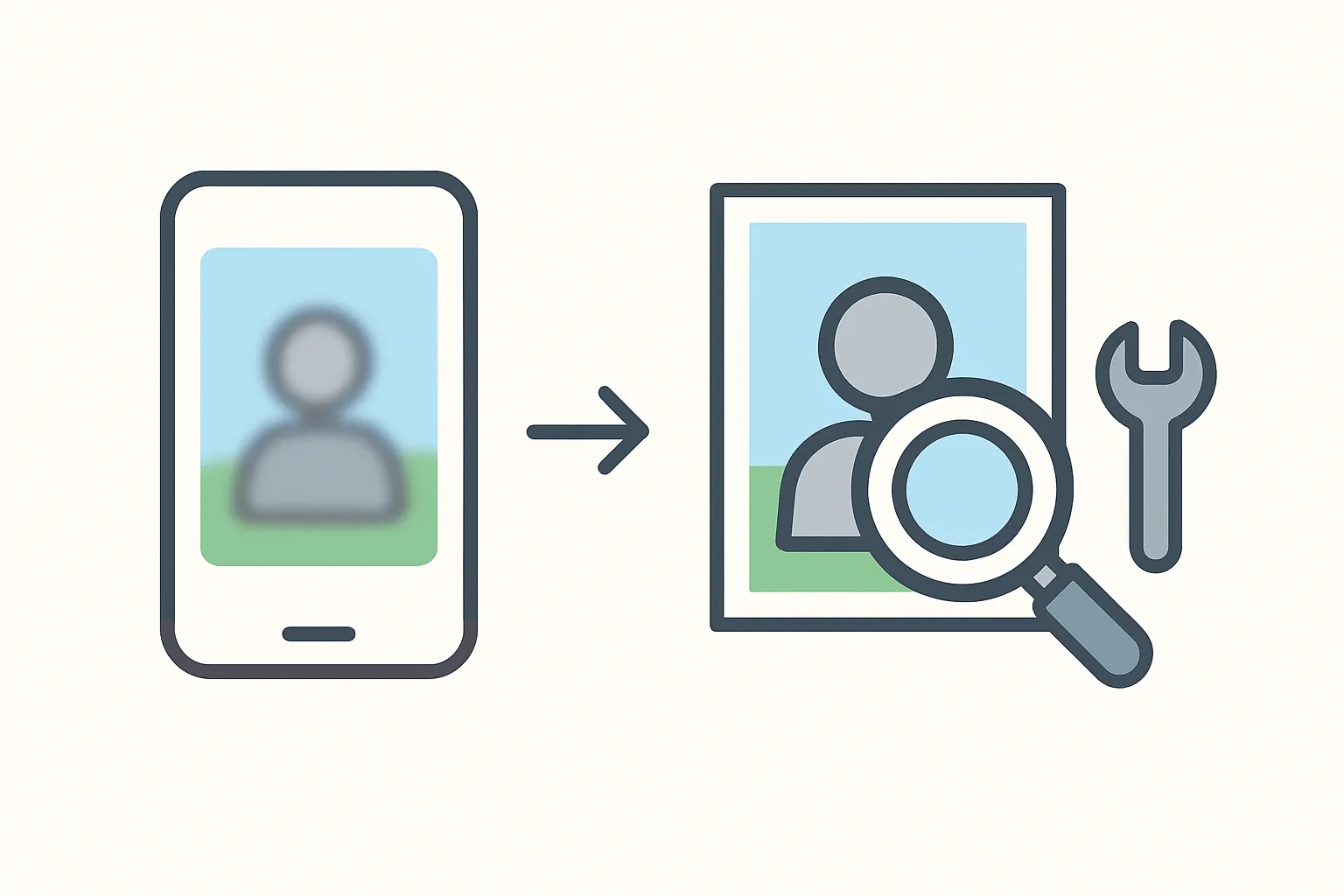
Mobile Apps for On-the-Go Fixes
Smartphone apps make quick corrections convenient when you're away from your computer. Many free options let you sharpen images directly on your device. Look for apps with history features so you can undo changes that go too far.
The touch interface makes precise adjustments harder than using a mouse. Work in good lighting so you can see the actual effect of your changes. For fixing compressed messenger photos, mobile apps provide a fast solution before you share images again.
AI Enhancement Technology
Artificial intelligence has changed how we restore old photographs. AI tools analyze thousands of reference images to understand what sharp photos should look like. They then apply this knowledge to your blurry pictures, recovering details that seemed lost forever.
These tools work best on photos with moderate blur. Severely out-of-focus images have less information to work with, limiting what any software can recover. If you need to enhance low resolution pictures for presentations, AI tools can upscale while adding sharpness in one step.
Manual Editing Techniques
Sometimes automatic tools miss the mark and manual editing gives better results. Selective sharpening lets you target faces or important subjects while leaving backgrounds softer. This technique draws attention where you want it most.
Layer-based editing programs let you compare before and after versions side by side. You can blend corrections at different strengths to find the sweet spot. When you need to improve webcam and laptop pictures, these manual methods help compensate for poor built-in cameras that rival old phone quality.
Preparing Photos for Printing or Sharing
Once you've sharpened your images, prepare them properly for their final use. Different outputs need different file settings. Prints require higher resolution than screen viewing. Social media platforms compress uploads, so apply slightly stronger sharpening to compensate for quality loss during upload.
Save your corrected photos as high-quality JPEGs or PNGs. Keep the original files separate so you can try different correction approaches later. For projects like improving images for website uploads, test your corrected photos at the actual display size to verify they look good.
Get Started Today
Rescuing blurry photos from old phones takes patience but delivers rewarding results. Start with your most treasured images and experiment with different techniques to see what works best for each photo. Better Colors offers a simple solution with AI-powered enhancement that automatically boosts contrast and color vibrancy in your old phone pictures - download Better Colors to start restoring your memories right away.