
AI Upscale Image: Boost Photo Quality Instantly
Turn blurry photos into sharp, detailed images with AI upscale tools. Want better results? Better Colors for Windows helps you enhance image quality and bring out true colors in your restored photos. Transform your pictures today!
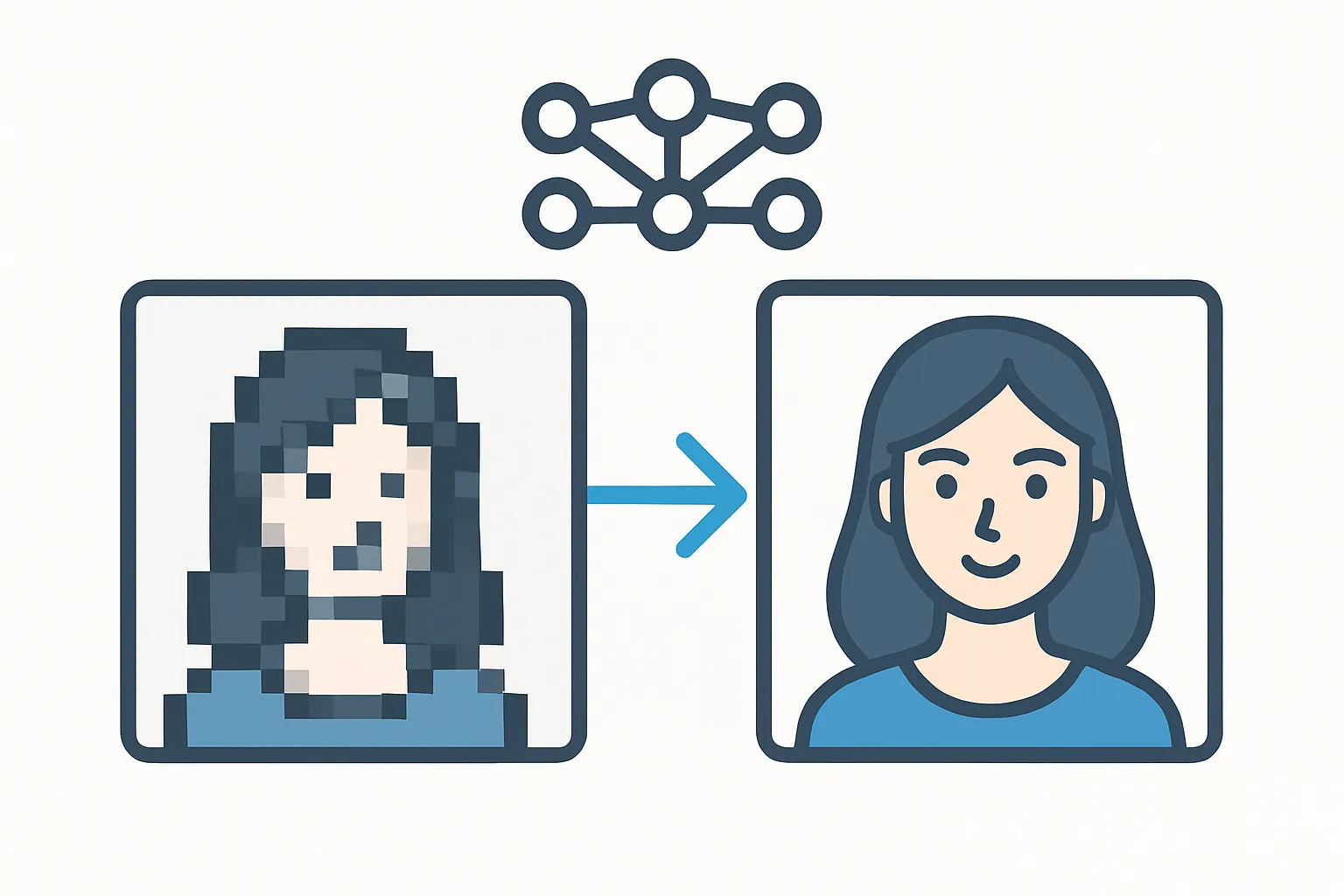
Low-resolution photos frustrate everyone. You open an old picture or download an image from the web, only to find it looks grainy and unclear. Artificial intelligence now solves this problem by analyzing pixels and recreating missing details. The technology reads patterns in your photo and fills gaps with realistic information.
What Does AI Upscaling Actually Do?
AI upscaling examines every pixel in your image. The software predicts what details should appear between existing pixels. It then generates new data to fill those spaces. Traditional resizing just stretches pixels, making images look worse. Modern algorithms study thousands of high-quality photos during training. They learn textures, edges, and color transitions. When you upscale an image, the AI applies this knowledge to rebuild your photo with improved clarity.
Why Choose AI Over Standard Resizing
Standard tools copy and paste pixels to make images larger. This creates blurry edges and blocky artifacts. AI-powered methods reconstruct fine details like hair strands, fabric textures, and facial features. Your photos gain sharpness without looking artificial. The process works especially well for portraits, product shots, and scanned documents.
Key benefits you get:
- Recovers fine details in faces, text, and complex patterns
- Prevents the blocky appearance common in stretched images
- Saves time compared to manual retouching in professional software
When to Use AI Upscaling Tools
You need these tools when preparing images for print. A photo that looks acceptable on a phone screen often fails when enlarged for a poster or brochure. Social media graphics also benefit from higher resolution. Platforms compress uploads, so starting with a sharper file helps maintain quality. Old family photos stored at small sizes come back to life when processed through an aI photo enhancer. Sellers on marketplaces improve product listings by sharpening blurry camera phone shots.
How to Get the Best Results
Start with the highest-quality source file you can find. AI works better when it has more original data to analyze. Avoid upscaling images that have already been compressed multiple times. Check the output carefully, because some tools add excessive smoothing that removes natural texture. Compare different processing settings if your software offers them. Some photos need strong enhancement, while others require a lighter touch.
If you also need to remove watermarks from images before upscaling, handle that step first. Clean source files produce better final results. Remember that AI cannot invent details that were never captured. A photo taken out of focus will improve but won't match the clarity of a sharp original.
Choosing the Right Tool
Free online services handle basic upscaling tasks. You upload your image, wait for processing, and download the result. Desktop applications offer more control and work faster for batch processing. Some tools specialize in anime or illustration styles, while others focus on photographs. Read reviews to find software that matches your specific needs. Many programs now include features to enhance photos with color correction alongside resolution improvements.
Professional photographers often prefer standalone applications that process files locally. This protects client privacy and avoids upload limits. Casual users find web-based options more convenient because they require no installation. Test a few different services with the same image to compare quality.
Common Mistakes to Avoid
Don't upscale images multiple times in sequence. Each pass adds small errors that accumulate. Instead, go directly from your original to the final size in one step. Avoid setting unrealistic target resolutions. Increasing a 100-pixel thumbnail to poster size will always show limitations. Keep expectations reasonable based on your source quality. Watch for over-sharpening that creates halos around edges or makes skin look unnatural.
When you work with an image enhancer, pay attention to file formats. Save your final output as PNG to preserve quality, not as heavily compressed JPEG. This maintains the improvements the AI created.
Getting Started Today
AI upscaling transforms unusable photos into print-ready files. The technology continues improving as researchers develop better algorithms. You can now achieve results that once required expensive software and expert skills. Start with a few test images to learn how different tools handle your specific photo types. Most services let you try a sample before committing to larger projects.
If you want to improve color and contrast in addition to resolution, download Better Colors - an AI-powered enhancement tool that boosts contrast and color vibrancy automatically.