
PDF Compressor: Reduce File Size Quickly and Easily
Want to compress PDFs while keeping perfect quality? Better Colors for Windows helps you shrink files fast and view documents with sharp, accurate colors. Download now to manage your PDFs better and see every detail clearly.

Large PDF files can slow down your workflow. They take longer to upload, download, and share. Email providers often reject attachments over 25 MB, forcing you to find alternative ways to send documents. A PDF compressor solves this problem by reducing file size while maintaining readability.
Why File Size Matters
PDF files grow large when they contain high-resolution images, scans, or embedded fonts. A 50-page report with photos can easily reach 30 MB or more. This creates problems when you need to send files quickly or store them on devices with limited space. Smaller files load faster in browsers and require less bandwidth. They also save storage space on your computer or cloud service.
Many professionals face file size limits daily. Students submit assignments through portals with strict restrictions. Job seekers attach resumes to application forms. Business teams share proposals with clients across different time zones.
How Compression Works
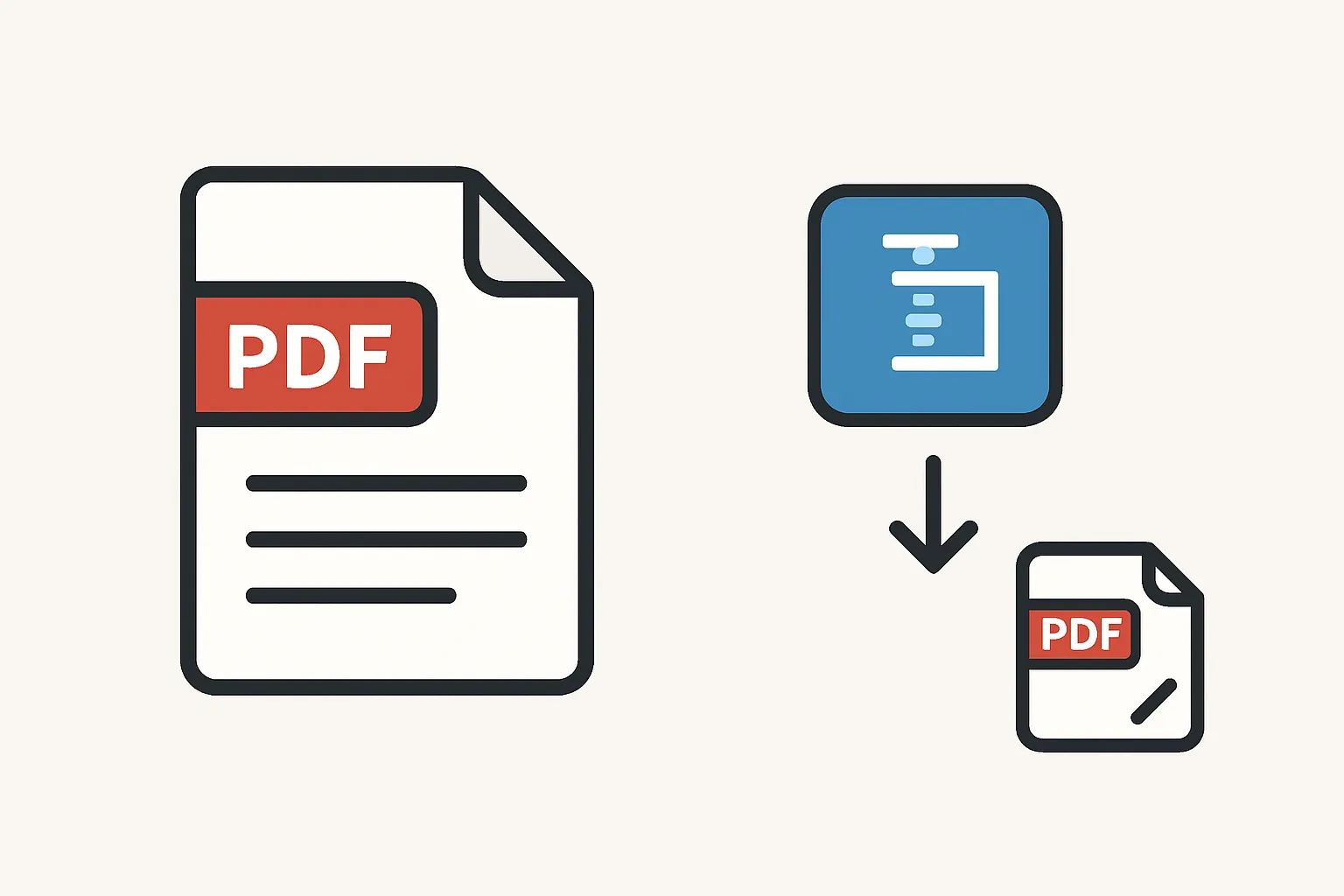
PDF compressors reduce file size through several methods:
- Image optimization - The software lowers image resolution and applies compression algorithms to photos and graphics
- Font subsetting - Only the characters used in the document are embedded, not entire font families
- Stream compression - Text and vector data are encoded more efficiently
The best tools let you choose between different compression levels. Light compression maintains near-original quality but offers modest size reduction. Heavy compression shrinks files more but may affect image clarity. You can often compress jpeg to 100kb or less depending on content type.
Online vs. Offline Tools
Online compressors work directly in your browser. You upload a file, wait for processing, then download the compressed version. These services require no installation and work on any device. However, they send your documents to external servers, which raises privacy concerns for sensitive materials.
Desktop software runs on your computer. You keep full control over your files, and processing often happens faster. Some applications also let you batch-process multiple documents at once. When you need to compress video files alongside PDFs, dedicated software often provides more options.
Choosing the Right Compression Level
Start with medium compression for most documents. This setting typically reduces file size by 50-70% without visible quality loss. Text remains sharp, and images stay clear enough for screen viewing.
Use light compression for presentations with detailed charts or technical drawings. The slight size reduction preserves fine details that matter for professional work. Heavy compression works well for text-only documents or files meant for quick preview rather than printing.
Test the output before sharing important files. Open the compressed PDF and zoom in on images to check clarity. Some free pdf compressor tools show you a preview before finalizing changes.
Tips for Better Results
Scan documents at appropriate resolution from the start. Many people scan at 600 DPI when 300 DPI provides sufficient quality for most purposes. This simple choice cuts file size in half before you even apply compression.
Remove unnecessary pages before compressing. Extract only the sections you need to share. Convert color pages to grayscale when color adds no value. These manual steps work alongside automated tools like an image enhancer to prepare files properly.
Check embedded content. PDFs sometimes contain hidden layers, comments, or metadata that increase size. Many compressors offer options to strip this extra data during the reduction process.
Maintaining Document Quality
Quality loss becomes noticeable when you compress the same file repeatedly. Each round of compression degrades images slightly more. Keep an uncompressed master copy for archival purposes, then create compressed versions as needed.
Pay attention to color accuracy if you work with brand materials or product photos. Some compression algorithms shift hues slightly. Professional work may require tools that preserve color profiles.
Fonts occasionally cause problems after heavy compression. Embedded fonts ensure text displays correctly on all devices, but aggressive compression can corrupt font data. Always verify text appears correctly after processing.
When to Skip Compression
Already-optimized PDFs gain little from further compression. Modern PDF creation tools apply efficient encoding by default. Text-only documents without images rarely benefit from additional processing either, since text compresses minimally.
Legal documents often require original, unaltered files. Check requirements before compressing contracts, court filings, or certified records. Some institutions specify acceptable compression methods or reject altered documents entirely.
High-resolution printing demands uncompressed files. While compressed PDFs look fine on screens, they may show artifacts when printed large or at professional print shops. When working with images that need enhancement, an aI photo enhancer can improve quality before creating your final PDF.
If you need to improve photos before converting them to PDF format, Better Colors offers fast processing that enhances your images in just a few seconds - available as a free download for Windows.