
Enhance Product Photos for Small Stores Simply
Learn practical methods to improve product photos for small stores. Discover lighting tips, background choices, and editing techniques that sell. Ready to perfect your colors? Better Colors for Windows makes photo editing simple and helps your products shine.
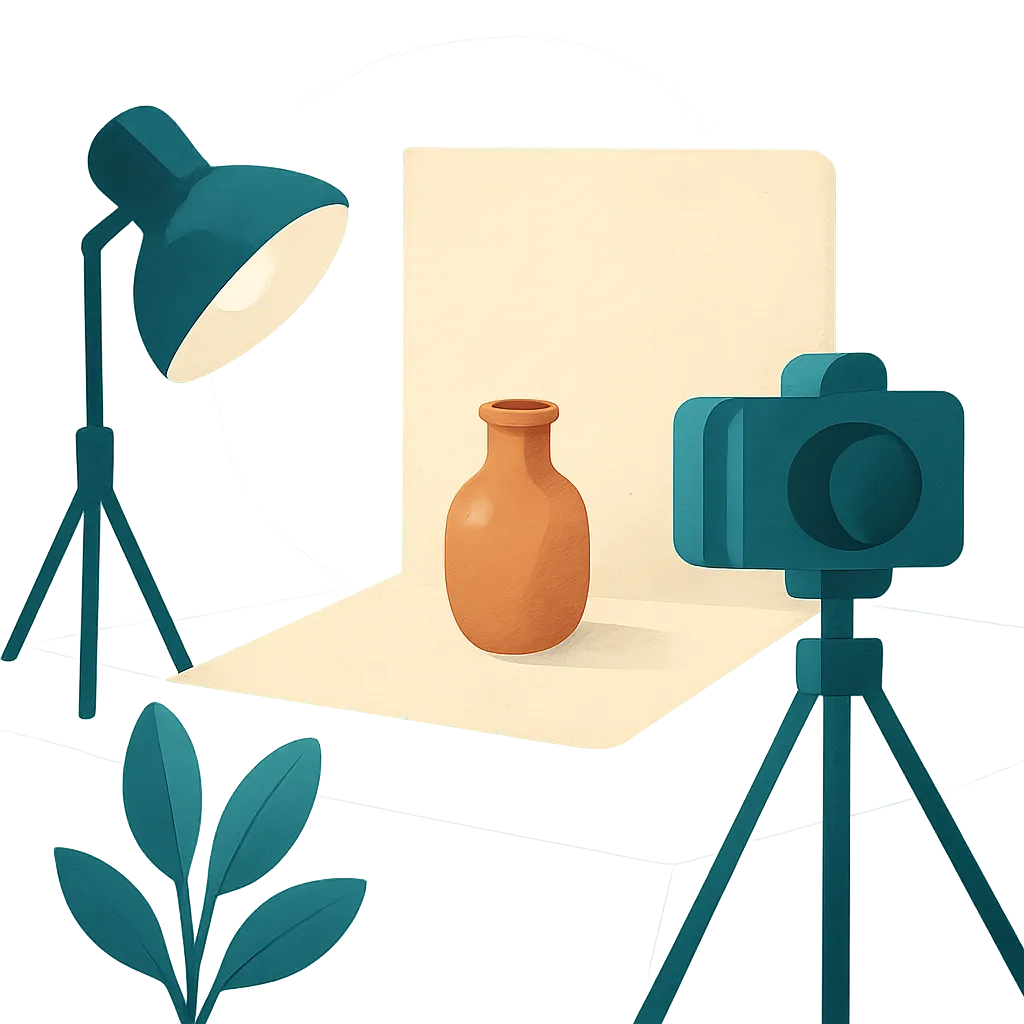
Small store owners face a common challenge: creating attractive product images without expensive equipment or professional help. Clear, appealing photos can increase sales and build customer trust. You don't need a studio or advanced skills to make your products look their best online.
Start With Proper Lighting
Good lighting makes the biggest difference in product photography. Natural light from a window works well for most items. Place your product near the window during daytime hours when sunlight fills the room softly. Avoid direct harsh sunlight, which creates unwanted shadows. If natural light isn't available, use two affordable desk lamps positioned at 45-degree angles from your product. White LED bulbs provide clean, neutral light that shows true colors.
Choose Clean Backgrounds
A simple background keeps attention on your product. White poster board costs just a few dollars and creates a professional look. You can also use neutral colors like gray or beige. Remove any distracting items from the frame before taking the shot. A cluttered background makes your product harder to see and reduces perceived value. For website upload, clean backgrounds load faster and look more professional.
Take Multiple Angles
Customers want to see products from different perspectives. Capture at least three to five angles: front view, back view, side views, and detail shots. Show any labels, textures, or special features up close. This builds confidence and reduces return rates. When photographing clothing, include shots of fabric texture and care labels. For electronics, show ports and buttons clearly.

Use a Stable Surface
Blurry images hurt sales more than almost any other factor. Place your camera or phone on a stable surface or use an inexpensive tripod. Even slight movement during the shot creates camera shake blur that makes products look unprofessional. A $15 phone tripod solves this problem completely. Set a two-second timer so pressing the shutter button doesn't cause movement.
Edit Your Photos Consistently
Basic editing improves every product photo. Crop images to remove empty space and center your product. Adjust brightness if the photo looks too dark or washed out. Most phones include built-in editing tools that handle these tasks. Keep editing consistent across all product photos so your store looks cohesive. Customers notice when some photos look crisp while others appear dull.
Quick Photo Enhancement Checklist
- Ensure adequate lighting with natural window light or two positioned lamps
- Remove all background clutter and use solid neutral colors
- Capture multiple angles including detail shots of important features
Optimize File Sizes
Large image files slow down your website and frustrate potential buyers. Most platforms recommend images between 500KB and 1MB for poster printing quality without causing slow load times. Compress files after editing but before uploading. Free online tools reduce file size while maintaining visible quality. Test your website loading speed on a mobile phone, since most shoppers browse on their devices.
Maintain Consistent Dimensions
Decide on standard dimensions for all product photos in your store. Square images work well for grid layouts, while rectangular images suit single-product pages. Common sizes include 1000x1000 pixels for squares or 1200x900 pixels for rectangles. Consistent sizing makes your store look organized and professional. It also simplifies the upload process when adding new products.
Address Common Photo Problems
Many small store owners struggle with issues like poor image clarity for archiving or colors that don't match the actual product. Take photos in the same location with the same lighting setup to maintain color accuracy. If your phone camera struggles in lower light, add an extra lamp rather than relying on flash, which creates harsh reflections. Review each photo on a computer screen before uploading, since phone screens can hide quality issues.
Match Photos to Platform Requirements
Different selling platforms have specific image requirements. Research the recommended dimensions, file formats, and size limits for your marketplace. Some platforms require white backgrounds, while others allow lifestyle shots. Preparing images for PDF documents of your catalog requires different specifications than web uploads. Follow platform guidelines to prevent your listings from being rejected or appearing poorly.
Small stores can create professional-looking product photos with minimal investment and practice. Better Colors offers AI-powered enhancement that automatically boosts contrast and color vibrancy in seconds. Download Better Colors to give your product images a polished, professional appearance that attracts more customers.