
Optimize Images for Website Upload in 2024
Want faster load times and sharp image quality? Reduce file sizes, choose the right format, and compress photos without losing clarity. Better Colors for Windows helps you manage color profiles and image settings for perfect results every time.

Your website loads slowly. Visitors leave before they see your content. Large, unoptimized images are often the culprit. Learning how to prepare photos correctly saves bandwidth, speeds up page loading, and keeps your audience on the site longer.
Why Image Optimization Matters
Search engines rank faster websites higher. When your pages load quickly, users stay longer and interact more. Heavy image files slow everything down. Optimizing your photos means smaller file sizes without visible quality loss. You get faster performance and happier visitors.
Choose the Right Image Format
Different formats serve different purposes. JPEG works well for photographs with many colors. PNG suits graphics, logos, and images that need transparency. WebP offers excellent compression and quality, but not all browsers support it yet. Match the format to your content type for the best results. If you're working on images for PDF documents, JPEG usually delivers the clearest text and photo combination.
Resize Images Before Upload
Upload images at the exact dimensions your website displays them. A photo that appears 800 pixels wide on screen doesn't need to be 3000 pixels wide in the source file. Resize first using any photo editor. This step alone can cut file sizes by 70% or more. Your server uses less storage, and pages load noticeably faster. When preparing product photos for small stores, proper sizing ensures customers see details without waiting.
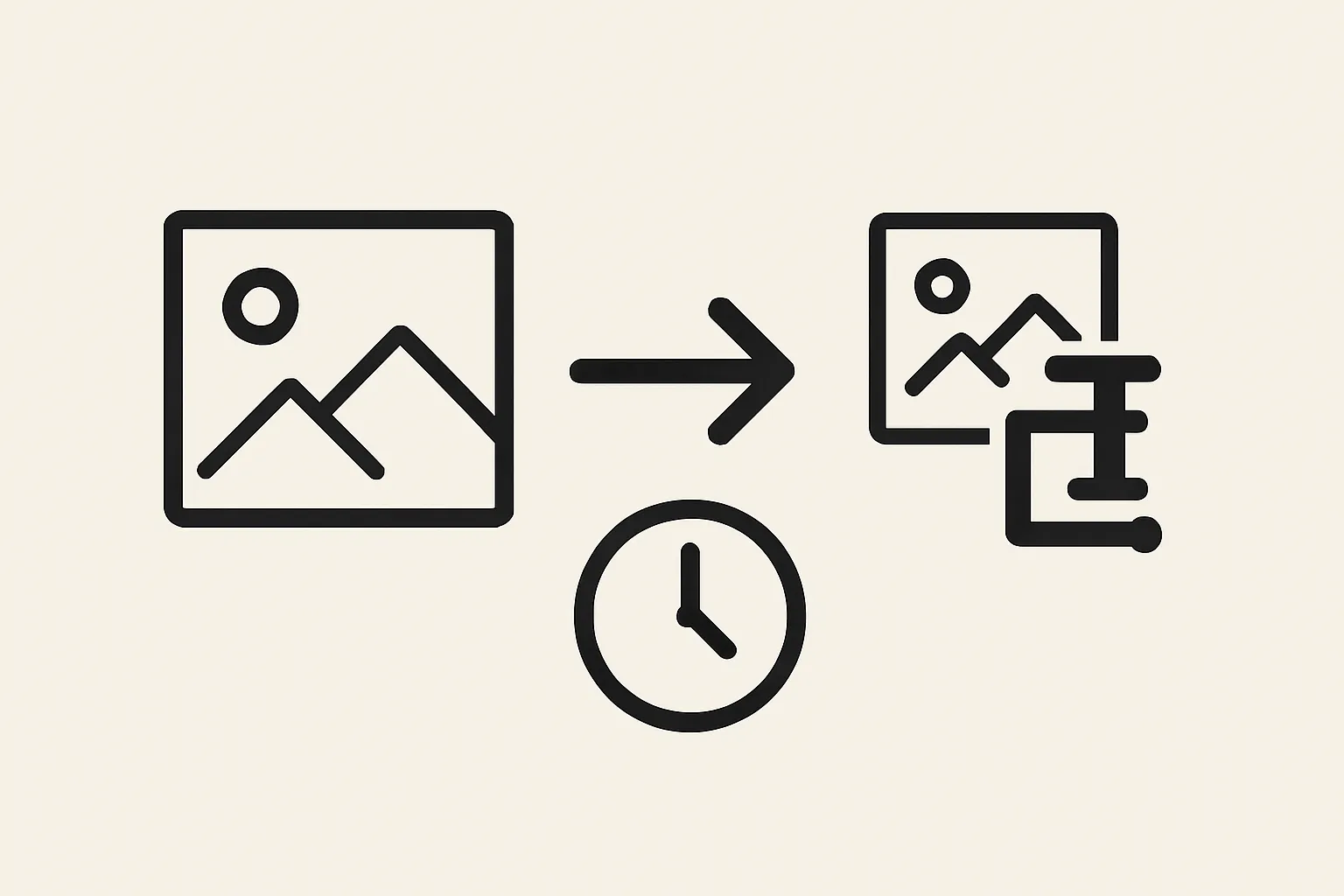
Compress Without Losing Quality
Compression reduces file size while keeping the image sharp. Tools like TinyPNG or ImageOptim strip unnecessary metadata and apply smart compression. Aim for a balance: files under 200KB load quickly, while quality remains high enough for most web use. Test different compression levels to find what works for your content. For screenshots before sharing, light compression keeps text readable and interfaces clear.
Quick Steps to Optimize Any Photo
Follow these steps every time you upload:
- Resize the image to match your website's display dimensions
- Choose JPEG for photos, PNG for graphics with transparency
- Compress the file to reduce size by 50-70% without visible loss
Use Descriptive File Names
Rename files before uploading. Instead of "IMG_1234.jpg," use "blue-running-shoes.jpg." Descriptive names help search engines understand your content. They also make managing your media library easier later.
Add Alt Text for Accessibility
Alt text describes the image for screen readers and appears when images fail to load. Write a short, clear description of what the photo shows. This practice improves accessibility and helps search engines index your content correctly. When uploading photos from old phones, note any historical or personal context in the alt text.
Test Loading Speed After Upload
Check how your pages perform after adding images. Tools like Google PageSpeed Insights show loading times and suggest improvements. If pages still load slowly, compress images further or convert to a more efficient format.
Automate the Process
Manual optimization takes time. Plugins and desktop apps can batch-process dozens of photos at once. Many content management systems offer automatic compression on upload. Set up automation once, and every future image gets optimized without extra effort. If you need to fix compressed messenger images, batch tools restore quality across multiple files quickly.
Start Optimizing Today
Optimized images make your website faster and more professional. Visitors notice the difference, and search engines reward you with better rankings. Download Better Colors to enhance your photos instantly with AI-powered contrast and color adjustments before you compress them for upload.