
Fix Compressed Messenger Images: Simple Solutions
Stop losing photo quality in messenger chats. Better Colors helps you fix compressed images and keep your pictures sharp. Download now to restore detail and prevent blurry photos in your messages.
Messenger apps compress photos to save bandwidth and storage space. This compression reduces file size but damages image quality. Your once-sharp pictures turn blurry and lose color depth. The problem affects everyone who shares photos through messaging platforms.
Why Messenger Compresses Your Photos
Messaging services automatically compress images to speed up delivery. The app reduces resolution and removes fine details. This process happens instantly when you send a picture. File sizes drop from several megabytes to just hundreds of kilobytes. The trade-off means faster uploads but lower quality.
Send Photos Without Compression
Most messenger apps offer a way to bypass compression. Look for a "document" or "file" option instead of the photo button. This method sends your image as an uncompressed file. The recipient downloads the full-quality version. The process takes slightly longer but preserves every pixel.
Here are the best ways to share high-quality photos:
- Send images as documents or files through the messenger's attachment feature
- Use cloud storage links to share full-resolution photos
- Email photos directly when quality matters most
Recover Quality from Compressed Images
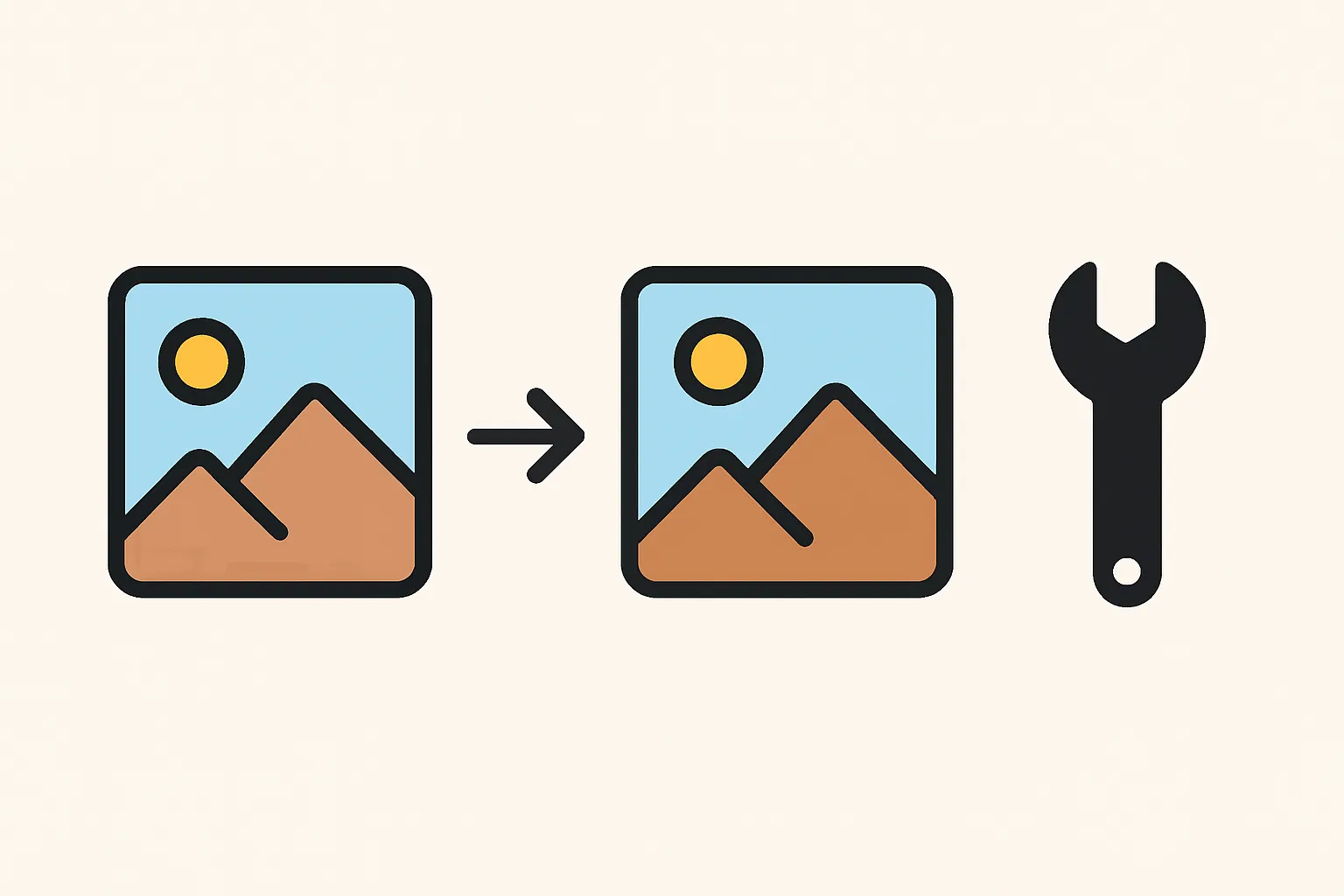
Once Messenger compresses a photo, the original data is gone. However, you can improve image clarity using enhancement software. These tools analyze what remains and sharpen edges. They boost contrast and restore some lost detail. The results won't match the original, but they look better than the compressed version.
Alternative Sharing Methods
Cloud services let you share photos without compression. Upload images to Google Drive, Dropbox, or similar platforms. Share the link through Messenger instead of the photo itself. Your friends access the full-quality version directly. This approach works especially well when you need to improve photos before email sending to multiple people.
Settings That Help
Check your messenger app settings for quality options. Some platforms allow you to choose between standard and high-quality uploads. Enable the highest quality setting available. Remember that enhancing screenshots before sharing also requires attention to format choices. Save original photos separately before sending them through any messaging app.
Prevention Tips
Store original photos in a separate location before sharing. Keep backups on your computer or external drive. This habit protects against accidental loss. When you need to fix blurry images from old phones, having the original file makes recovery easier. Professional photographers never rely solely on messenger apps for photo distribution.
Software Solutions
Photo enhancement programs can partially reverse compression damage. They work best on images that weren't heavily compressed. The software identifies blur patterns and sharpens accordingly. Some tools specifically target JPEG artifacts created during compression. These programs help when you need to improve low resolution images for presentations or other professional uses.
Quick Fix Methods
Save compressed images and run them through editing software. Adjust sharpness and clarity sliders carefully. Too much sharpening creates unnatural edges. Small adjustments often produce the best results. Export in PNG format to avoid adding more compression. This format preserves what quality remains in your recovered image.
If you frequently work with compressed images, download Better Colors to quickly enhance your photos with AI-powered algorithms that automatically boost contrast and color vibrancy.