
Improve Images for Resumes and Profiles Fast
Professional photos need accurate colors and proper contrast for resumes and profiles. Better Colors for Windows helps you adjust your display settings to see true colors. Get your photos ready with confidence and make them look their best.
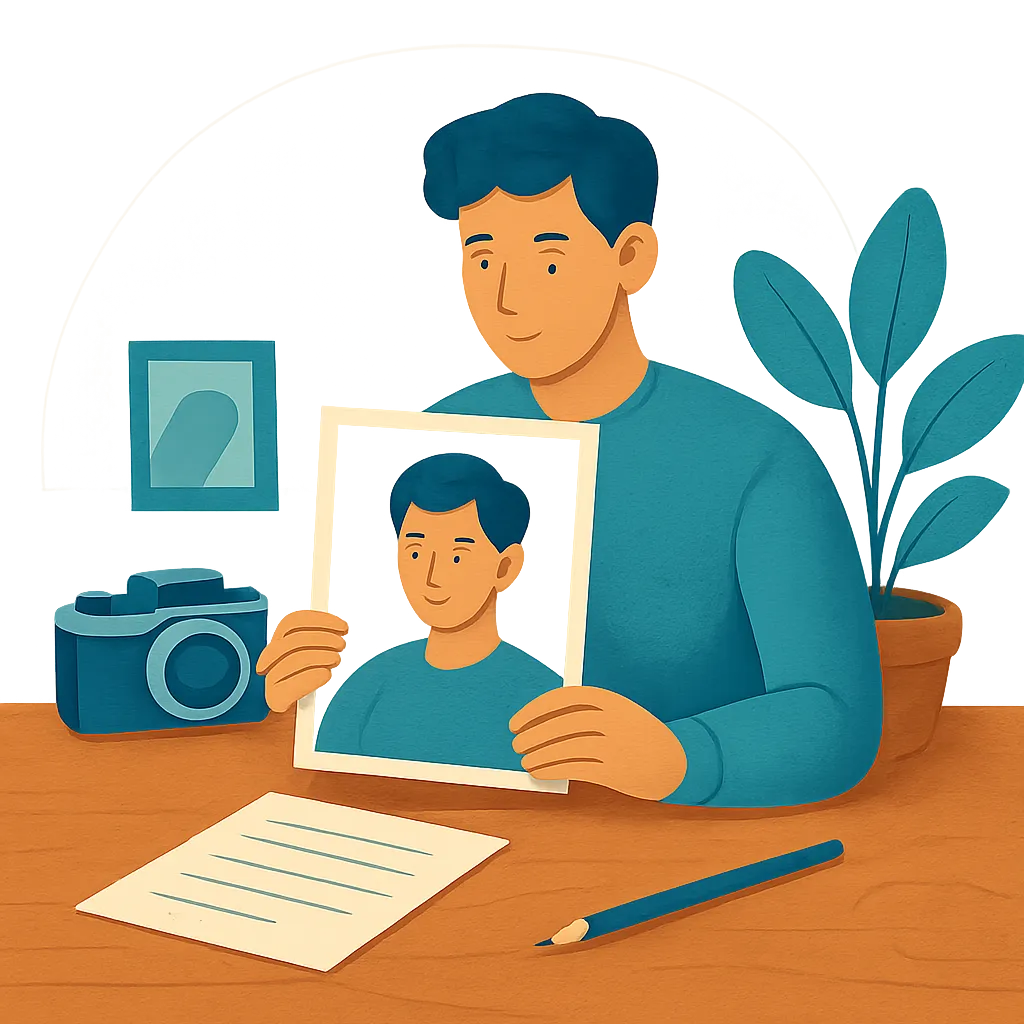
Your photo creates the first impression before anyone reads a single word. Recruiters and hiring managers often scan profiles in seconds, and a poor-quality image can damage your professional credibility. Learning how to prepare your photos correctly gives you an advantage in competitive job markets.
Why Image Quality Matters for Professional Documents
Poor lighting, blurry details, or pixelated backgrounds send the wrong message. A sharp, well-lit photo shows attention to detail and professionalism. Companies receive hundreds of applications, and visual quality helps you stand out. Your image should look clean on both screens and printed paper. Improving passport and ID photo quality requires similar attention to lighting and resolution, since official documents demand precision.
Choose the Right File Format and Size
Most platforms accept JPEG and PNG files, but each serves different purposes. JPEG works well for photographs with natural color gradients, while PNG preserves sharp edges and text better. Keep file sizes under 1 MB to ensure quick loading on websites and email systems. Check the specific requirements of each platform before uploading - some limit dimensions to 400x400 pixels, others prefer 1000x1000 or higher.
Optimize Lighting and Background
Natural daylight produces the most flattering results. Stand near a window with indirect sunlight to avoid harsh shadows on your face. Avoid overhead fluorescent lights that create unflattering tones. Choose a plain background - white, gray, or light blue work best. Remove clutter and distracting objects from the frame. If you're working with existing photos, webcam and laptop photos can be adjusted for better contrast and brightness using simple editing tools.
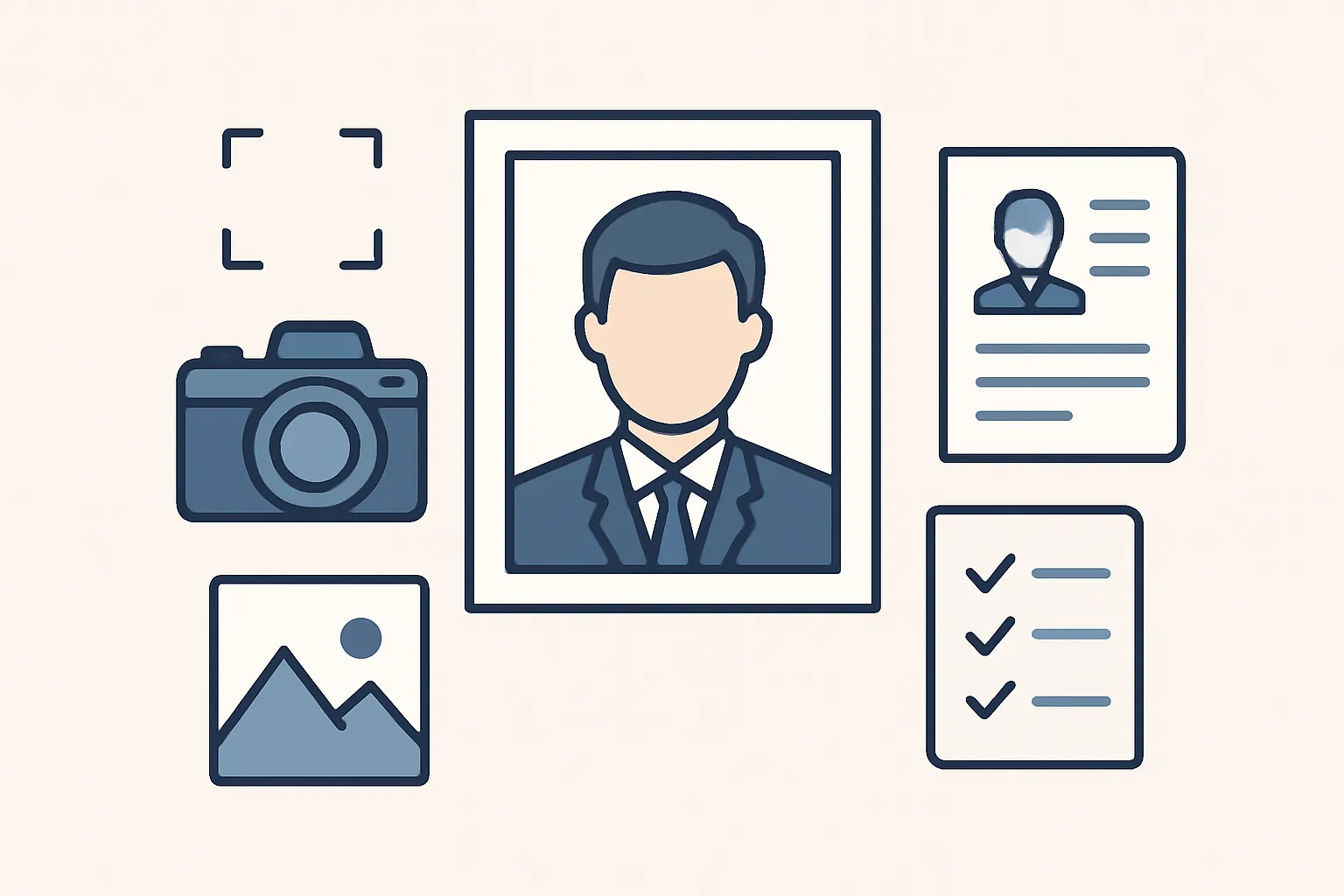
Key Steps to Prepare Your Profile Photo
Follow these concrete actions to ensure your image meets professional standards:
- Use a high-resolution source file (at least 800x800 pixels)
- Center your face in the frame with shoulders visible
- Wear professional attire appropriate for your industry
Adjust Contrast and Color Balance
Washed-out colors make you look tired or unprofessional. Increase contrast slightly to make facial features more defined. Adjust color temperature if the original photo has a yellow or blue tint. Skin tones should appear natural, not overly warm or cool. Many recruiters view applications on different screens, so test your photo on both mobile devices and desktop monitors. When preparing materials for applications, remember that images for PDF documents need similar adjustments to maintain clarity across different viewing platforms.
Crop and Frame Correctly
Your face should occupy about 60-70% of the frame. Leave some space above your head - don't crop too tightly at the hairline. Position your eyes roughly one-third down from the top edge. This creates a balanced composition that looks professional on all platforms. Avoid extreme close-ups or full-body shots unless specifically requested. If you're also preparing presentation materials, applying these principles to low resolution images for presentations helps maintain consistency across your professional materials.
Test Across Different Platforms
Upload a test version to LinkedIn, email it to yourself, and view it on your phone. Colors and sharpness can shift between devices. Make sure the image remains clear even when displayed as a small thumbnail. Some platforms automatically compress files, which can reduce quality. Starting with a high-quality source file protects against this degradation. When sending applications, consider whether images before email sending maintain their quality after transmission - some email clients compress attachments automatically.
Final Quality Check
Review your photo at actual display size, not zoomed in. Ask a colleague or friend for honest feedback. Check for distracting elements, unnatural color casts, or blurry areas. Your photo should look crisp, professional, and represent you accurately. Replace outdated photos regularly - a five-year-old image doesn't reflect your current appearance.
Better Colors offers AI-powered enhancement that automatically boosts contrast and color vibrancy in your photos. Download Better Colors to quickly prepare professional images that make a strong first impression on recruiters and professional contacts.