
Improve Passport and ID Photo Quality Easily
Want perfect passport and ID photos? Fix lighting problems, background errors, and low resolution fast. Better Colors for Windows helps you adjust colors and brightness to meet official photo requirements. Get professional results at home.
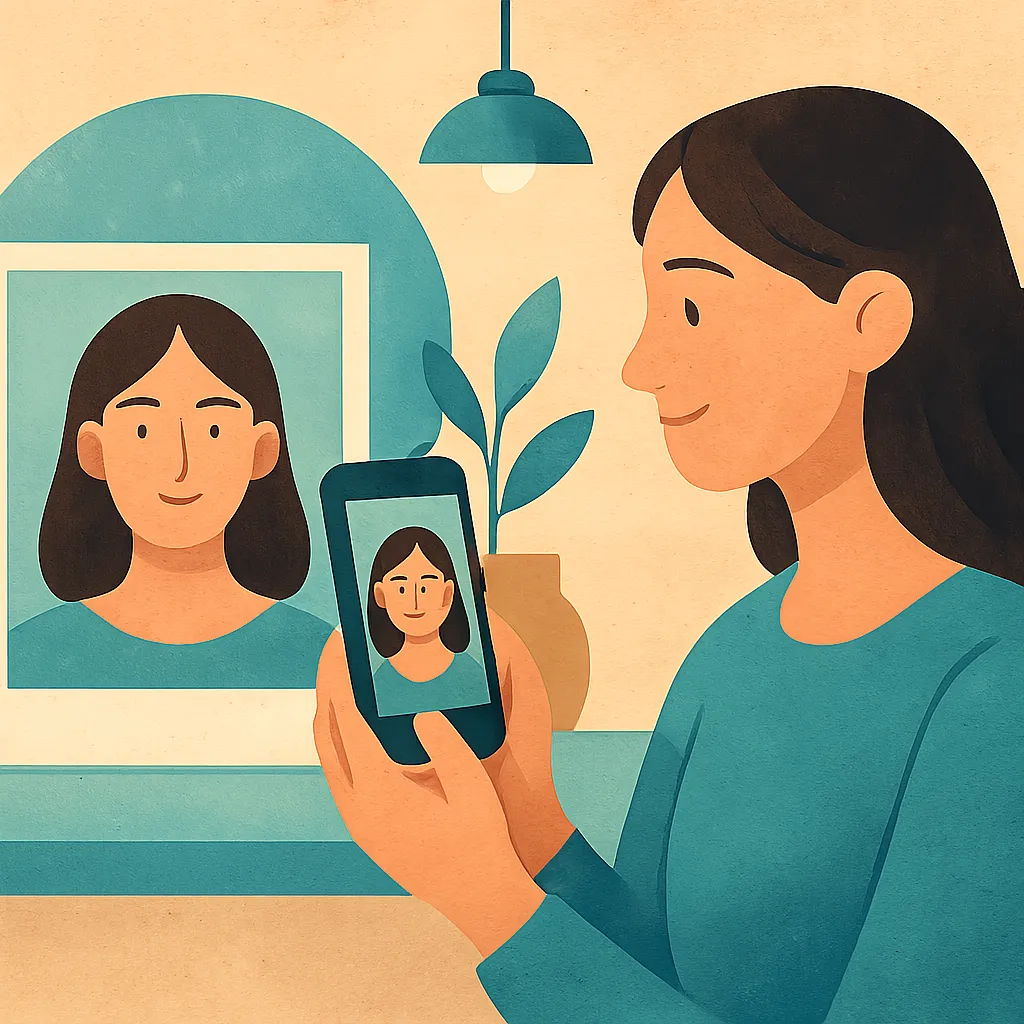
Passport and ID photos must meet strict standards. Poor quality images can lead to rejected applications and wasted time. Understanding how to capture and improve these photos will save you frustration and help you get documents approved faster.
Why Photo Quality Matters for Official Documents
Government agencies require specific photo standards for security reasons. Blurry faces, incorrect lighting, or wrong dimensions can cause rejection. Photos must show clear facial features with proper contrast. Your eyes, nose, and mouth need to be visible without shadows or glare. enhancing images for resumes and profiles follows similar principles, since both require professional presentation and clarity.
Common Problems with Passport Photos
Several issues can ruin an otherwise acceptable photo:
- Poor lighting creates shadows on your face or washes out features
- Wrong background colors or busy patterns fail compliance rules
- Low resolution makes facial features appear unclear or pixelated
These problems often happen when people take photos at home without proper equipment. The camera on your phone might not capture enough detail, especially in dim rooms.
Lighting Techniques That Work
Natural light from a window works best during midday hours. Face the light source directly so your features receive even illumination. Avoid overhead lights that cast shadows under your nose and chin. If you only have artificial lighting available, position two lamps at 45-degree angles on each side of your face. This setup eliminates harsh shadows while providing enough brightness. fixing blurry photos from old phones can help if your mobile device captured an unclear image.
Background and Positioning Rules
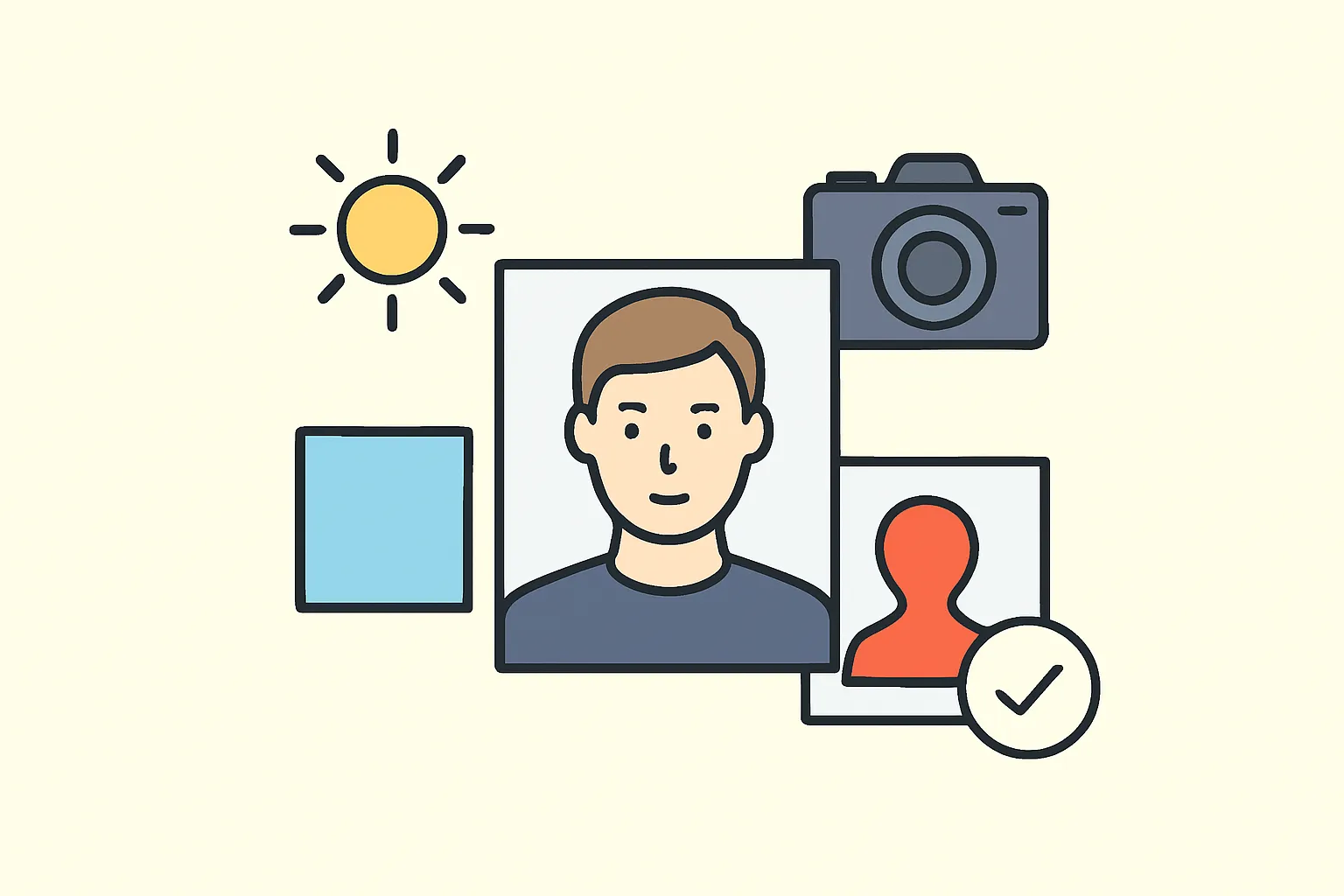
Most countries require plain white or light gray backgrounds. Stand approximately four feet from the wall to prevent shadows. Position the camera at eye level, not above or below. Your head should fill 50-70% of the frame, depending on specific country requirements. Remove glasses unless you have a medical certificate. Keep your expression neutral with both eyes open and mouth closed.
Resolution and File Format Requirements
Digital passport photos typically need 600 by 600 pixels minimum, though some countries require higher resolution. Save files as JPEG format to meet standard specifications. improving scanned photos for printing requires similar attention to resolution when you need physical copies. Check your camera settings before taking pictures to avoid fixing over resized image quality problems later. Most smartphones can adjust resolution in the camera app settings.
Fixing Common Quality Issues
If your photo appears too dark, adjust brightness carefully without creating an artificial look. Remove red-eye effects that sometimes occur with flash photography. Crop the image according to official guidelines, maintaining proper head position and spacing. reducing noise in low light photos becomes necessary when you shoot in dim conditions, though prevention through better lighting works best.
Professional Results at Home
You can achieve professional-quality photos without visiting a studio. Use a tripod or stable surface to eliminate camera shake. Take multiple shots and select the best one. Review each photo at full size on a computer screen to check sharpness and lighting. Print a test copy before submitting official applications to verify colors match requirements.
Better Colors offers AI-powered enhancement that automatically boosts contrast and color vibrancy in your passport photos. Download Better Colors to quickly improve image quality and meet official photo standards without complicated editing software.