
GIF Compressor: Reduce File Size Fast & Easy
Learn how to compress GIF files and reduce sizes while keeping quality for faster loading. Want better color optimization and quick results? Better Colors for Windows helps you process images fast without quality loss.
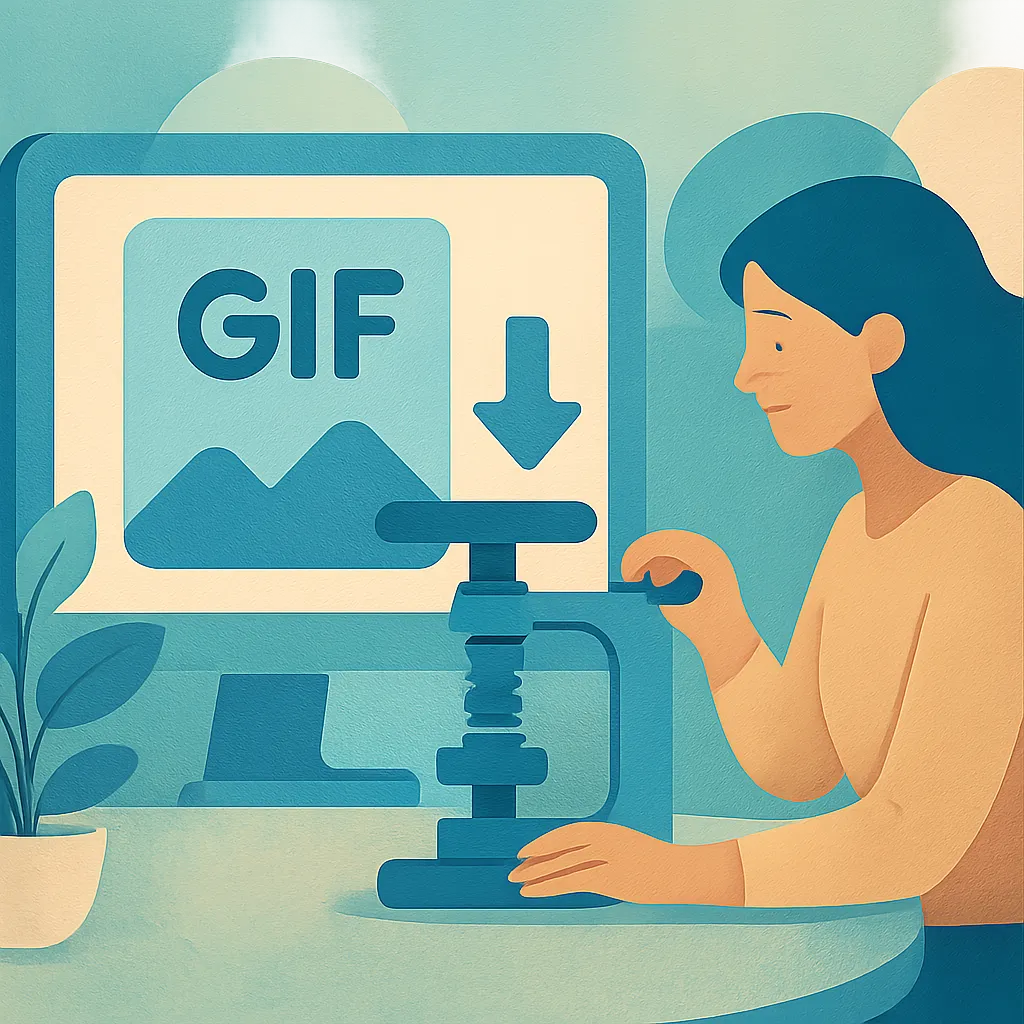
GIF files bring movement and personality to digital content, but they often come with a cost: large file sizes. When you share animated images online, file size matters. A bloated GIF can slow down your website, eat up bandwidth, and frustrate visitors who wait for images to load. Compression offers a practical solution to this common problem.
Why GIF Files Need Compression
Animated GIFs store every frame as a separate image. A three-second animation might contain dozens of frames, each adding to the total file size. Without compression, a simple animation can balloon to several megabytes. Large files take longer to download, especially on mobile connections. They also consume more server storage and bandwidth. When you compress video formats alongside images, you create a faster, more responsive web experience.
How GIF Compression Works
Compression reduces file size by removing redundant data and optimizing color palettes. Here's what happens during the process:
- The compressor analyzes each frame and identifies repeated pixels
- Color palettes are reduced from 256 colors to a smaller, optimized set
- Duplicate frames are eliminated to cut unnecessary data
The best compression tools balance file size reduction with visual quality. You want smaller files, but not at the expense of choppy animation or visible artifacts. Different compression levels let you choose between maximum quality and minimum file size.
Choosing the Right Compression Method
Online tools offer quick compression without software installation. You upload your GIF, select compression settings, and download the optimized file. Desktop applications provide more control over quality settings and batch processing. Some tools also handle other tasks like image enhancement, giving you multiple functions in one place.
Lossless compression keeps every pixel exactly as it was. This method produces perfect quality but offers limited size reduction. Lossy compression removes some data permanently, creating smaller files with slight quality trade-offs. For web use, a moderate lossy compression often provides the best results. If you also need to resize GIFs, many compression tools include resizing features that further reduce file dimensions.
Practical Tips for Better Results
Start with the highest quality source file. Compression works best when you begin with clean, well-made animations. Avoid compressing a GIF multiple times - each pass degrades quality further. Consider reducing the frame rate or dimensions before compression. A 500-pixel-wide GIF at 15 frames per second often looks just as good as a 1000-pixel version at 30 frames per second, but with a fraction of the file size.
Test your compressed files on different devices and connections. What looks acceptable on a desktop monitor might show artifacts on a mobile screen. Keep backups of your original files so you can re-compress with different settings if needed. Similar to how you might compress JPEG to 100kb for specific upload requirements, GIF compression lets you target particular file size limits.
When to Use GIF Compression
Compression becomes necessary when you publish content online. Social media platforms often have file size limits. Email attachments need to stay under certain thresholds. Website performance depends on fast-loading images. E-commerce sites benefit from quick product demos that don't drag down page speed.
Even personal projects gain from compression. Family photo albums load faster when animations are optimized. Digital portfolios make better impressions when images appear instantly. Presentation files stay manageable when GIFs are properly compressed. The same principles apply whether you're working with animated graphics or need to upscale images for print materials.
Getting Started Today
Download Better Colors for free to enhance your photos with AI-powered algorithms that automatically boost contrast and color vibrancy, making your visual content stand out before or after compression.