
Fix Over-Resized Image Quality: Quick Solutions
Restore clarity and sharpness to stretched or enlarged images with practical techniques. Better Colors for Windows gives you the tools to fix distorted photos and bring back their original quality. Download now and start recovering your images today.
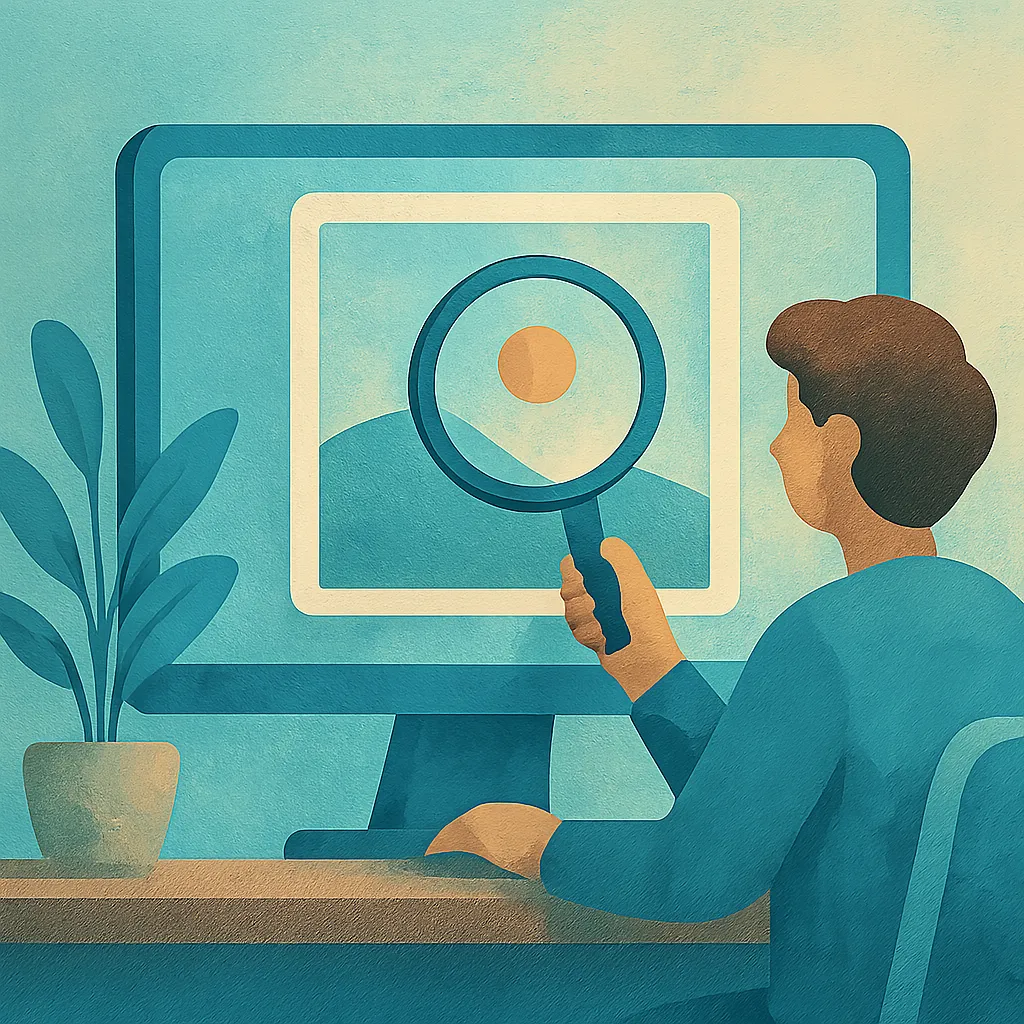
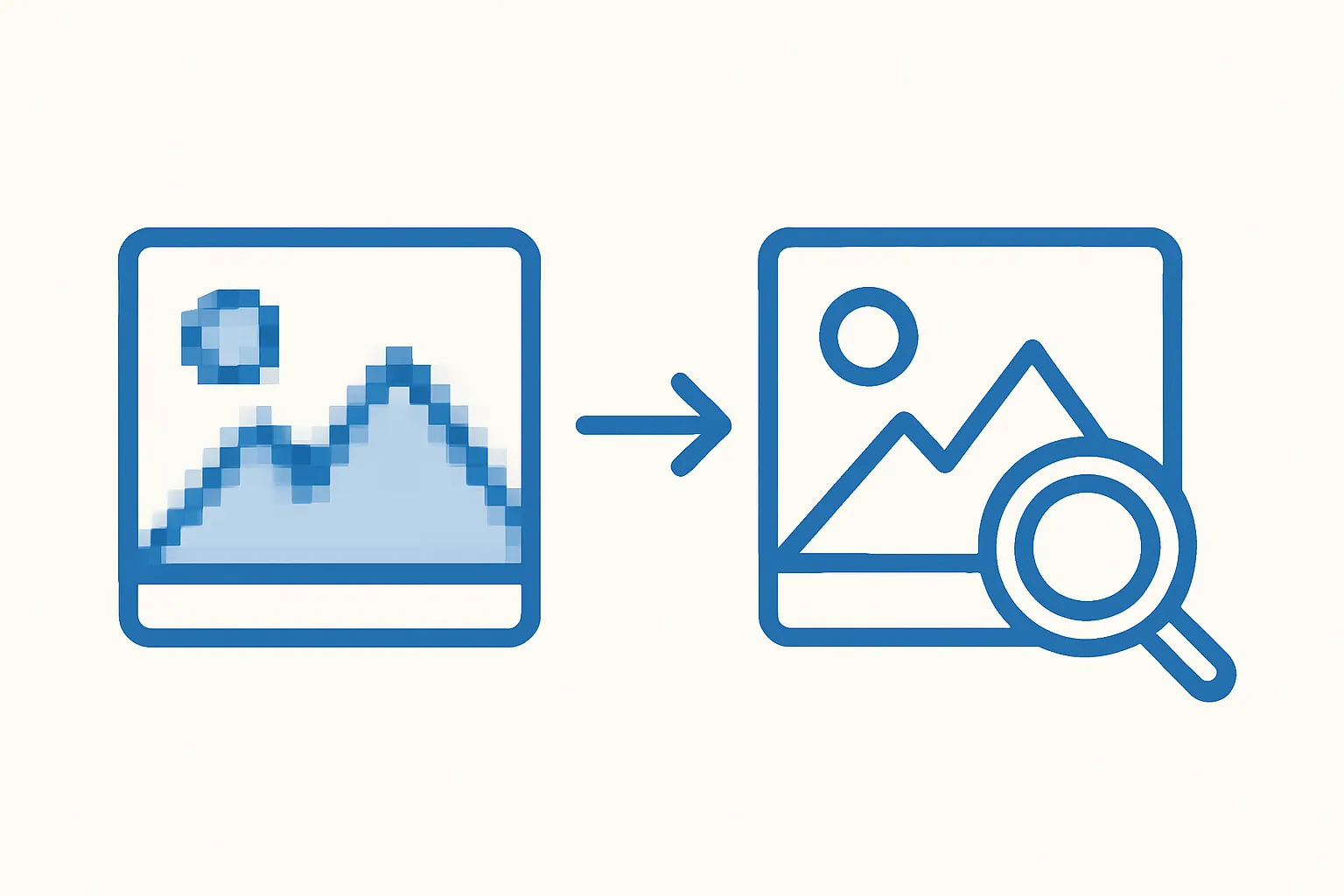
When you stretch an image beyond its native dimensions, pixels spread apart and quality drops. The photo looks soft, blurry, or pixelated. This problem appears often when you prepare graphics for large displays, print projects, or presentations.
Why Images Lose Quality When Resized
Digital images store information in a grid of pixels. Each pixel holds a specific color value. When you enlarge an image, software adds new pixels by guessing what colors should fill the gaps. This process, called interpolation, cannot create detail that wasn't captured originally. The result is a loss of sharpness and definition.
Prevention: Start With High-Resolution Sources
The best solution is to avoid the problem entirely. Always work with the highest resolution version available. Before you enhance low resolution images for presentations, check if a better source exists. Contact the original photographer or search for a larger file format.
Here are three key prevention steps:
- Capture photos at maximum resolution settings on your camera or phone
- Download images in their original size rather than thumbnail versions
- Scan documents at 300 DPI or higher when digitizing paper materials
Techniques to Recover Lost Quality
When prevention isn't possible, several methods can help restore appearance. Professional image editors offer resampling algorithms that preserve more detail during the enlargement process. Bicubic interpolation generally produces better results than basic nearest-neighbor methods.
Sharpening filters can bring back edge definition that softens during resizing. Apply them carefully, because too much sharpening creates artificial halos around objects. Many professionals improve scanned photos for printing by combining gentle sharpening with contrast adjustments.
Software Tools and Settings
Most photo editing applications include dedicated resizing tools. Adobe Photoshop offers "Preserve Details 2.0" specifically designed for enlargements. GIMP provides multiple interpolation options under its scale function. Even basic programs include quality settings you can adjust.
When you enhance product photos for small stores, pay attention to output format. Save enlarged images as PNG files to avoid additional compression artifacts. JPEG format applies lossy compression that further degrades already compromised quality.
Working With Specific Image Types
Different image types require different approaches. Screenshots and graphics with text need special attention to keep letters readable. When you improve screenshots before sharing, use algorithms optimized for sharp edges rather than those designed for photographs.
Portraits and natural scenes tolerate slight softness better than technical diagrams. You can often fix compressed messenger images successfully by adding selective sharpening only to important areas like eyes and text, while leaving backgrounds softer.
Setting Realistic Expectations
No technique can truly add detail that wasn't captured initially. You're working within physical limits of the original capture. A tiny thumbnail will never become a crisp poster, no matter which tools you apply. Understanding these boundaries helps you plan projects better and choose appropriate source materials from the start.
Small enlargements of 120-150% often work acceptably. Beyond that threshold, quality degradation becomes noticeable. Professional photographers typically keep this constraint in mind when they calculate required capture resolutions for final output sizes.
If you need a quick way to recover contrast and color depth in resized images, Better Colors offers AI-powered enhancement that automatically boosts these qualities in seconds.