
Fix Washed Out Scanned Images: Simple Solutions
Washed out scans ruin your images. Fix faded photos fast with brightness, contrast, and color correction. Better Colors for Windows gives you professional tools to restore your scans in minutes. Download now and bring your old images back to life.

Scanned documents and photos often look pale and lifeless. The colors fade, details disappear, and the entire image loses its original quality. This happens because scanners capture light differently than cameras, and settings may not match the original material.
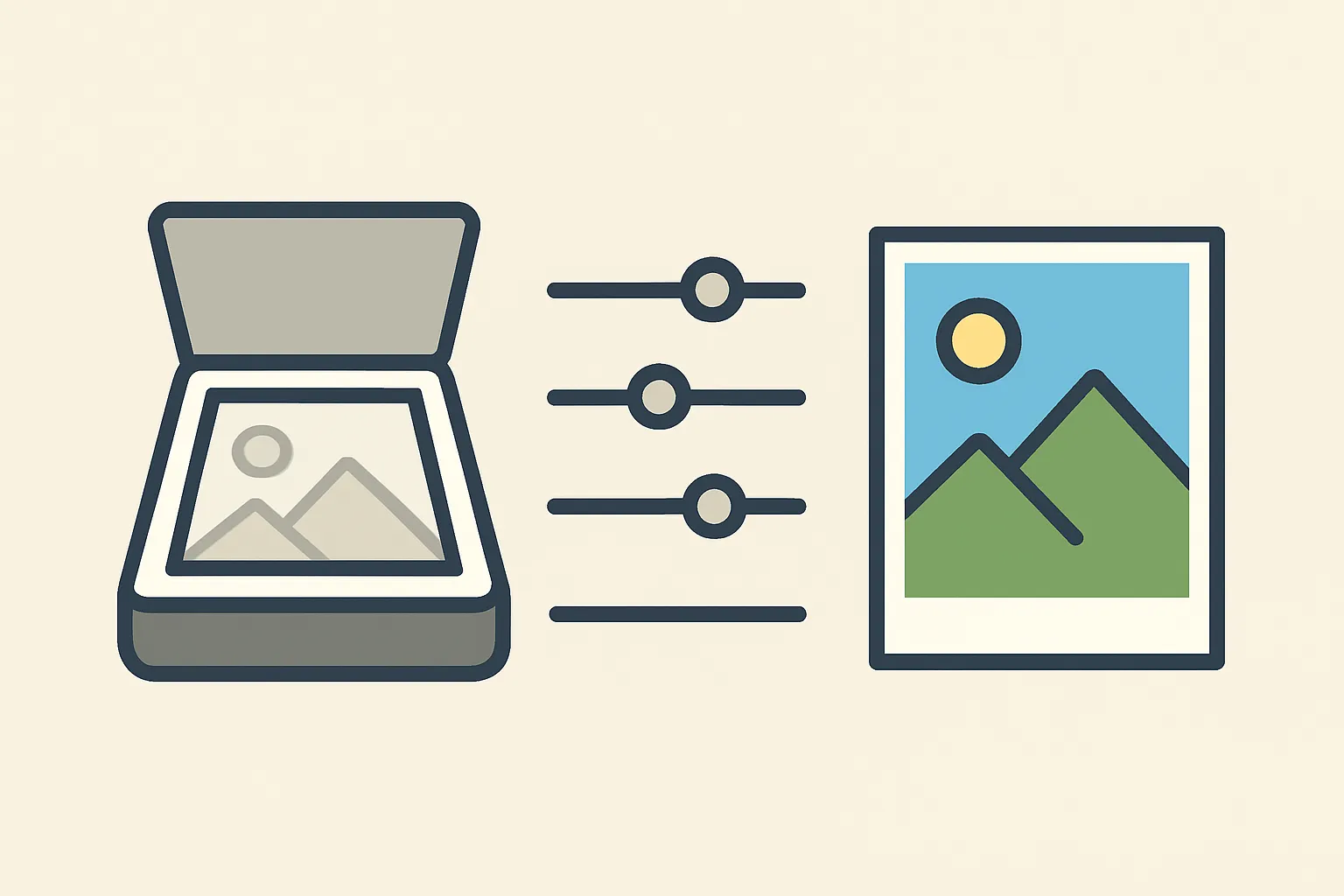
You can restore these faded scans with a few basic adjustments. Most image editing programs offer tools to bring back lost contrast and color depth. Understanding which settings to adjust will help you recover details that seem lost.
Why Scanned Images Look Washed Out
Scanners flatten the tonal range of your original material. The device tries to capture everything from pure white to deep black, but often ends up with mostly middle tones. Dust on the scanner glass, incorrect scanner settings, or aging source materials make the problem worse.
Old photographs present special challenges when you restore old scanned family photos. The original print may have faded over time, and the scanner captures this degraded state. Paper yellowing adds a color cast that dulls the entire image.
Quick Fixes That Work
Three main adjustments restore washed out scans:
- Increase contrast to separate light and dark areas
- Adjust brightness levels to expand the tonal range
- Boost color saturation to revive faded hues
Start with contrast adjustments. Pull the black point down and the white point up until the darkest areas look truly dark and the brightest areas approach white. This single step often solves most problems.
Next, check the midtones. Many washed out scans need the middle brightness values pushed darker. This brings back depth without losing highlight detail. When working with low resolution images for presentations, these adjustments become even more important because projection screens wash out colors further.
Color Correction Methods
Faded scans often carry a yellow or blue tint. Remove this cast before adjusting individual colors. Most editing programs have an auto color balance feature that neutralizes these unwanted shifts. If your scanned document looks greenish or orange, manual color correction gives better control than automatic tools.
After removing color casts, increase saturation gradually. Push the slider up until colors look natural, not artificial. Oversaturated images look worse than slightly faded ones. When you need to improve scanned photos for printing, remember that printers handle color differently than screens.
Advanced Recovery Techniques
Some scans need more than basic adjustments. Curves tools let you target specific brightness ranges without affecting others. You can lift shadow detail while keeping highlights intact, or darken midtones without crushing blacks.
Selective color adjustments help when only certain colors look wrong. Red may need more saturation while blue stays fine. Layer-based editing lets you apply different corrections to different parts of the same scan. This proves useful for images for PDF documents where text and photos appear together.
Sharpening brings back edge definition lost during scanning. Apply it after all other corrections. Too much sharpening creates halos around objects, so use a light touch. Noise reduction smooths out grain from high-resolution scans of textured paper.
Saving Your Corrected Scans
Save corrected images in a format that preserves quality. JPEG works for most purposes, but use high-quality settings to avoid compression artifacts. PNG maintains every detail without compression loss, though files become larger.
Keep your original scans unchanged. Work on copies so you can return to the starting point if corrections go wrong. When preparing images for website upload, create web-optimized versions separately from your archival copies.
Better Colors fixes washed out scans automatically using AI-powered enhancement that boosts contrast and color vibrancy without manual adjustments. Download Better Colors to restore your faded scans instantly with its simple drag-and-drop interface.